 en
en Italian
 German
 French
 Spanish
 Russian
mp3Tag Pro is a highly flexible MP3 tag editor for MP3, WMA, WAV, FLAC, APE, OGG Vorbis, AAC, WavPack, MPC/MPP/MP+, and M4a/MP4 files. It can populate ID3 tags of your files by extracting information from filenames and folder names. If you have a database, it is possible to import tags.
However, sometimes existing information is incomplete or missing. In such cases mp3Tag Pro can search the internet and download tags. Four powerful online services are supported: Amazon, Discogs, MusicBrainz, and FreeDB.
FreeDB doesn’t require any information in tags or filenames at all. If your files have cryptic names like “01.mp3”, “02.mp3” etc., don’t worry. FreeDB won’t use the information anyway.
But some information is still required, otherwise how would it know which album you have? Thus your files must meet the following conditions:
- the album should be in its original order (like on the CD)
- no additional tracks, no missing tracks. The album should be complete.
Additional tracks are easy to skip when selecting files, so it should be no problem.
Let’s see what can be done with the original order.
Filenames like “track01.mp3” already contain necessary information and cause no problem. The original order can be destroyed, if the files were renamed (for example, titles were used as filenames). In that case they do have some information, so you can consider using Amazon (for example).
Now, let’s tag an album.
Select all files that belong to the album. On the toolbar of “ID3 tags” area, click the “Generate tags” button:

A new window will be shown. Choose the “Get data from FreeDB” tab:

Click “Get album info”. Your internet connection should be active. If Windows throws a firewall warning, allow mp3Tag Pro through the firewall.
The program will connect to a FreeDB server and download necessary information. Usually it is almost instant.
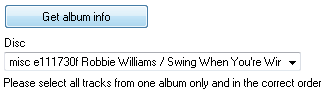
There may be different versions of the same album. You can choose them from the “Disc” dropdown list.
Click “Save tracks info” in the lower part of the window to save downloaded information into the files.
Now this information can be used to rename and sort music files.


