 en
en Italian
 German
 French
 Spanish
 Russian
Suppose you have just downloaded tags for your MP3, APE, WMA, OGG and other music files using Amazon, Discogs, or MusicBrainz. What now?
Maybe it would be a good idea to rename the files, so that they follow naming rules of your music collection.
The MP3 tag editor can rename and organize audio files. Information is taken from ID3 tag fields according to the pattern selected by you. The program builds new filenames and creates folders, using your pattern.
As an example, let’s take a look how to rename MP3 files (this method can be applied to all supported audio formats).
First, we select MP3 files in mp3Tag Pro. On the toolbar of “ID3 tags” area, click the “Rename files” button:

A new window appears. In the left upper corner, edit the format string to create your own template for filenames, or simply use one of the predefined templates available in the dropdown list:
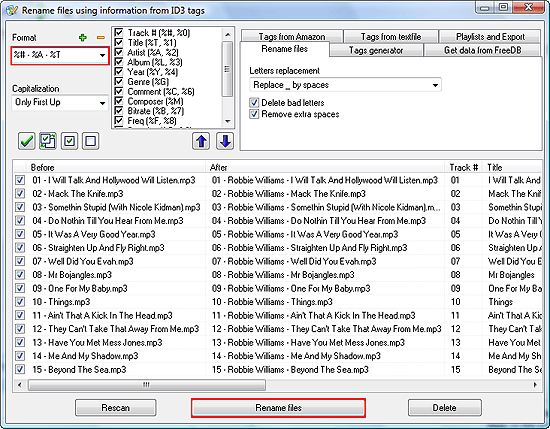
In the preview area, see the “After” column. It shows how your filenames will look like after you apply the selected pattern. Preview reflects changes in the format string immediately.
Suppose that we want our filenames contain track number, artist’s name and title separated by dashes. We can see the list of variables right beside the “Format” field. So, let’s try:
%# - %A - %T
In the preview area, our filenames change to exactly what we wanted. Now we should just click the “Rename files” button in the lower part of the window to confirm renaming.
In the rename window, you can see some additional options. Let’s discuss what they mean.
“Capitalization” applies different upper/lower case patterns.
“Letters replacement” will replace spaces with “_” or the other way around (this may be useful for some hardware that have problems recognizing filenames that contain spaces). Unnecessary spaces can be removed.
“Delete bad letters” – some symbols cannot be used in filenames. If checked, this option will skip such symbols.
“Remove extra spaces” – normalizes usage of spaces between words. Only one space will be left between each two words.
Create Folders. Sort Your Audio Files
mp3Tag Pro can also create folders while renaming music files. Building folder names from variables is similar to building filenames. Use the backslash character “\” to create a pattern for folders.
On the screenshot above we have an album of Robbie Williams called “Swing When You’re Winning”. If we want to create a folder called “Swing When You’re Winning” and put all related files there, we need the following format:
%L\%# - %T
Any combination of ID3 tag values is possible. For example, if we want to sort our albums chronologically, we may use this format:
%Y - %L\%# - %T
It adds the release year to the folder’s name (followed by a dash and by the name of the album).
Advanced structures can be built just as easily:
%A\%Y - %L\%# - %T
This will make a folder “Robbie Williams”, a subfolder “2001 – Swing When You’re Winning”, and the MP3 files will be moved into the latter.
You can easily see the advantage of this method. If you have several albums of Robbie Williams, mp3Tag Pro will create a clear hierarchy of folders and sort the songs. If you have albums from other singers as well, the above given format will do even a better job: all songs will be sorted by artists and albums. You can add sorting by genre:
%G\%A\%Y - %L\%# - %T
This method can also be used, if you want to re-organize your music collection. Use the “Scan subfolders” button to select all files in nested folders, then create and apply a new pattern. Then simply delete the old structure of folders.


