 en
en Italian
 German
 French
 Spanish
 Russian
The MP3 tag editor can help managing large music collections by renaming and tagging MP3, WMA, FLAC, APE, and many other types of audio files. If you want to preview certain files before tagging them, the program can play them for you.
By default, the internal player is used. To use another player, do the following.
Open “Edit” – “Options“. Go to the “Play and association” tab. There are the following options:
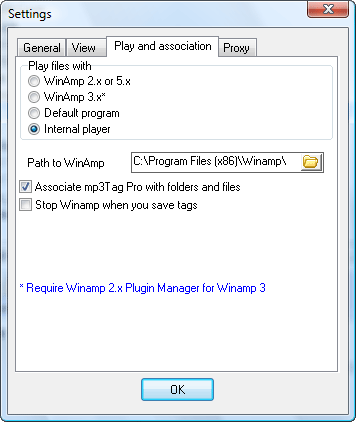
mp3Tag Pro can use Winamp, its built-in player, or default media player in your system. The built-in player is the quickest solution, but it supports only a few audio formats (in fact, there is no player that would support all formats, but many players can be extended by the means of plug-ins). mp3Tag Pro can process tags and rename all popular audio formats, but not all of them are playable with the built-in player.
To start playing a file, double-click it in mp3Tag Pro, or right-click it and select “Play”. Alternatively, use these controls on the toolbar:

If a file is being played, it cannot be changed. For example, you cannot save tags to the file, rename it, save lyrics or album art. If an external player is used (Winamp or any other), stop it before saving tags or renaming files. Internal player is stopped automatically, if necessary.


