 en
en Italian
 German
 French
 Spanish
 Russian
Movienizer can fetch information about movies from internet databases. However, if you have quite a big collection in another movie collector program, you will find it boring to enter each and every movie once again.
In such cases you can use the movie collection import feature.
Movienizer is capable of importing movie collections from text files. So, first you need to export your collection from the source program.
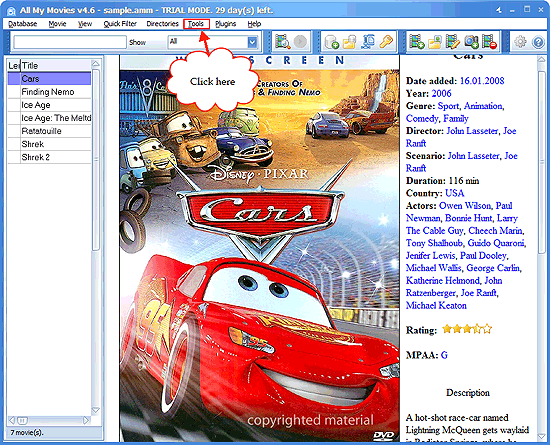
In All My Movies, click menu item “Tools”:
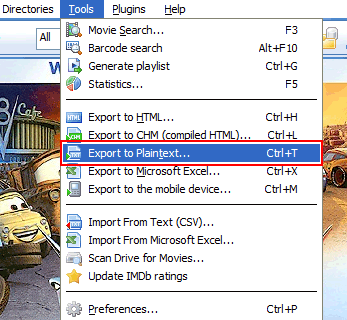
Select “Export to Plaintext”:
In the new window, move to the left list all the fields that you want to export. Just select a field’s name in the list on the right and click the highlighted button (see screenshot):
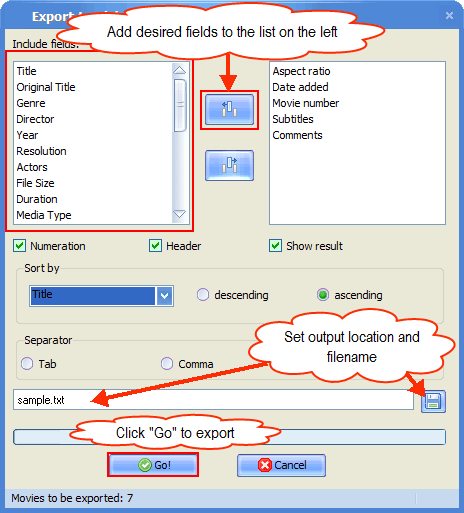
Set output location and filename. You can click the diskette button to use “Browse” system dialog. Set “Semicolon” as separator.
Finally, click “Go!” to export your database.
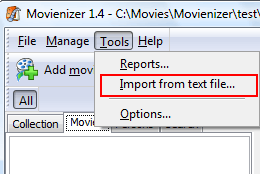
Close AllMyMovies and open Movienizer. Click menu item “Tools”. Select “Import from text file”.
In the new window, enter the full path to the file that you have exported with AllMyMovies. You can also browse to the file by clicking the folder button on the right.
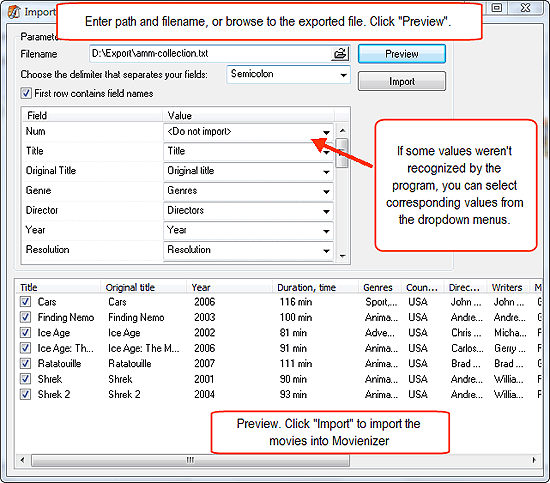
Under the filename, there is a dropdown menu that allows you to specify what kind of separator has been used in the text file. We used semicolon in All My Movies, so let’s set “Semicolon” here as well.
Now, click the “Preview” button.
In the middle part of the window you can see a list with two columns: “Field” and “Value”. “Field” shows values from the first line of your text file. “Value” defines fields of Movienizer to which values from the left column will be imported. Movienizer is able to detect most of the fields automatically, if their names are listed in the text file. To improve recognition, we recommend to switch interface language of AllMyMovies to English before exporting.
If Movienizer doesn’t recognize a field’s name, it shows <Do not import> in the list of values. You can choose any available field from the dropdown menu to import information to.
Check results in the preview list (below), then click “Import”. Movienizer will add the movies to the current database. It will take some time, depending on number of movies to import. The program shows a progress bar while importing.
When finished, close the window and enjoy your newly imported movie collection.


